How to optimize and improve your Zoom connection

We have all been there when hosting a Zoom meeting - the audio and video becomes choppy and the sound becomes distorted. Below are tips and tricks to help optimize your setup for the best possible connection.
In general:
- Wired connections are better than wireless (WiFi or cellular) connections.
- WiFi connections are better than cellular (3G/4G/LTE) connections.
When your microphone is on, Zoom will devote part of your Internet connection to an audio stream for you, even if you are not speaking. Mute your microphone when you do not need it, and you will allow Zoom use your Internet connection more effectively.
Sending high definition (HD) webcam video requires more bandwidth than sending non-HD. Disabling HD video will free up more of your Internet connection for other parts of your Zoom meeting.
Zoom meetings can demand significant memory and processing power from your computer. Closing other applications, ones you do not need during the session, will help Zoom run better.
Don't start other bandwidth-intensive activities just before, or during, a Zoom meeting. On your Zoom device—and as much as possible, on other computers and devices that share your Internet connection—avoid:
- large downloads
- large uploads
- streaming video (e.g. Netflix, Hulu, YouTube)
- cloud backups (e.g. Carbonite, CrashPlan)
- cloud file synchronizations (e.g. OneDrive, Dropbox)
- other high-bandwidth activities
Need something more reliable? That's where LiveControl can help -- we can install and manage all your camera equipment, operate your cameras during your LiveStream, and distribute the content to all your favorite destinations. Want to get started? VisitLiveControl.iofor more info.
Ready to elevate your live stream?
Professional live streaming production — no technical expertise required.
Get a Demo →More from the blog
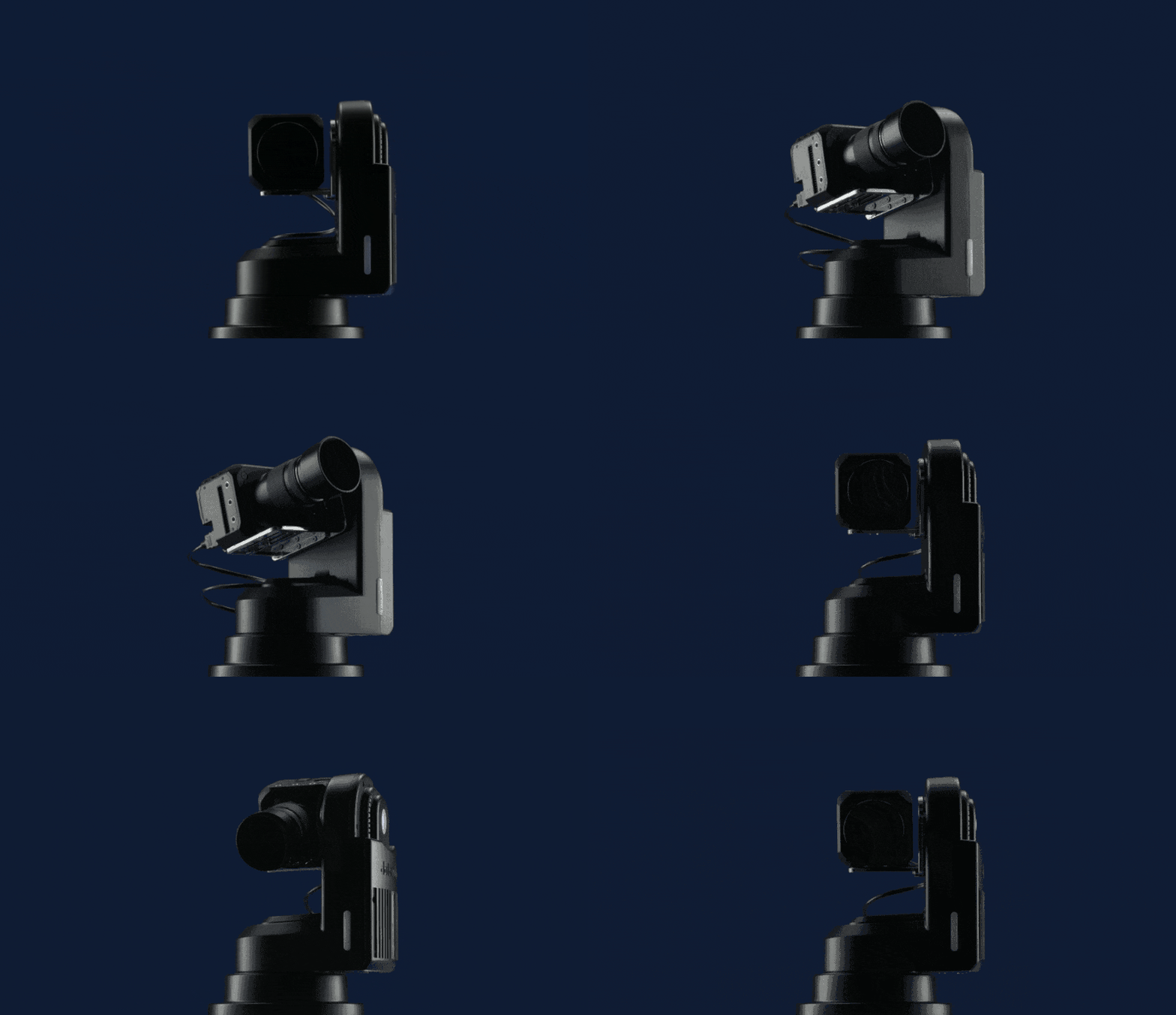
What is a PTZ Camera?
PTZ cameras are the gold standard for live streaming — versatile, high-quality, and remotely operated.
Read Story →
How Much Does it Cost to Live Stream an Event?
Breaking down the real costs of live streaming equipment, operators, and platforms.
Read Story →
Best Cameras for Live Streaming Church
Comparing Logitech Mevo, camcorders, and PTZ cameras for church live streaming.
Read Story →